What is Android TV Box and How does it work?

An Android TV Box is a small media streaming device that runs on the Android operating system, enabling users to watch IPTV, stream movies and TV shows, play games, and access a variety of online content directly on their television. It’s essentially a “smart” converter for your TV, turning any regular television into a fully functional smart TV.
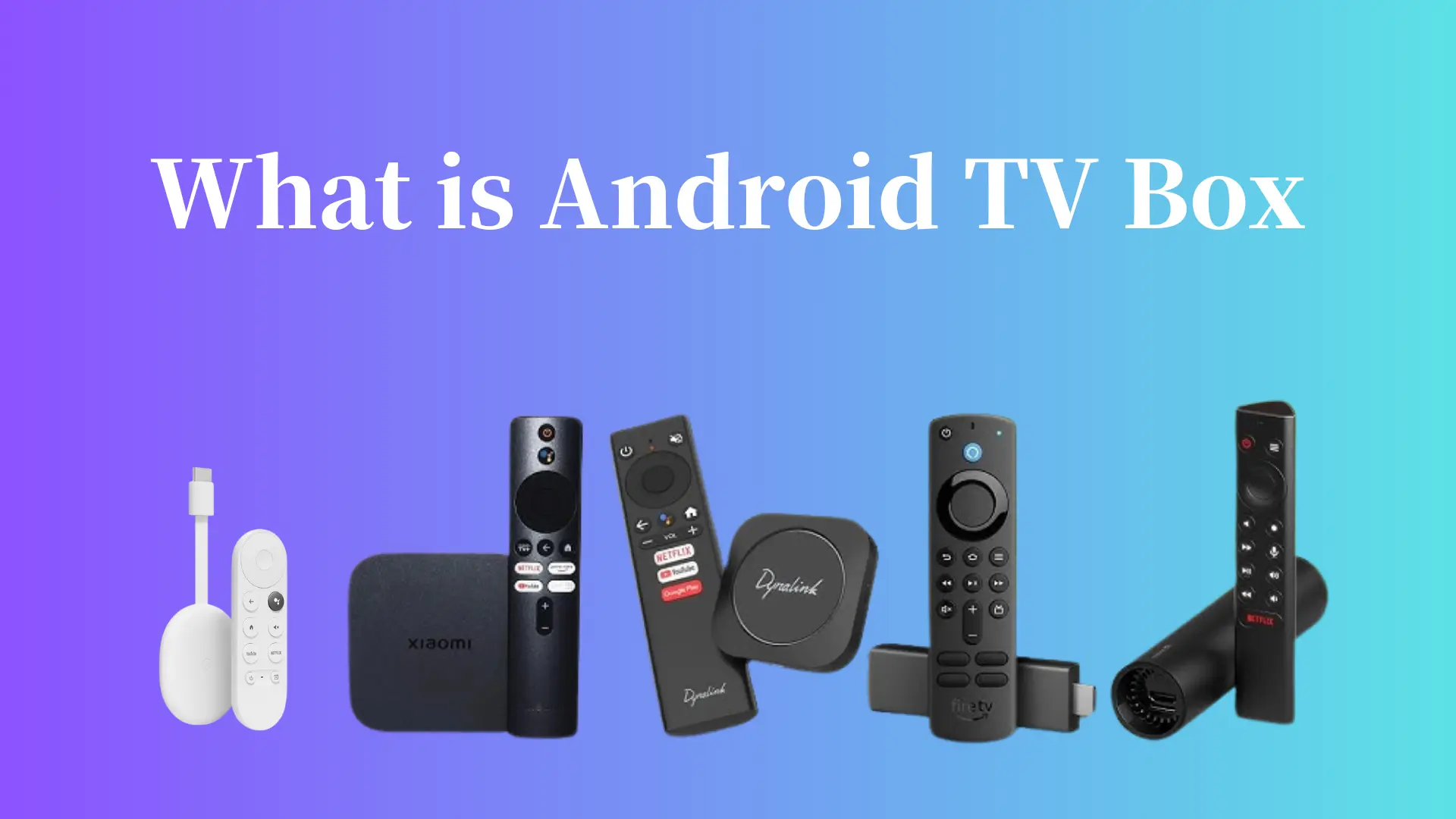
The Android TV Box connects to your TV via HDMI and provides access to various applications, media streaming services, and games. These boxes are incredibly popular today due to their affordability, ease of use, and the versatility they offer. Well-known Android TV Box brands include Nvidia Shield, Amazon Fire TV, Xiaomi Mi Box, Minix Neo, and many others, each offering a unique set of features tailored to different user needs.
The Advantages of an Android Box
1. Access to Popular Applications
With an Android TV Box, you can access the Google Play Store, which houses thousands of applications, including streaming services, games, and more. Among the most commonly used apps for streaming IPTV channels on Android TV Boxes are IPTV Smarters, GSE Smart IPTV, and Perfect Player. These apps provide a seamless IPTV experience, letting you watch live TV, sports, and more directly from your TV screen.
2. Easy Internet Browsing
An Android TV Box allows you to turn your television into a large web browser, giving you access to websites, articles, social media, and videos online. Whether you’re reading articles or catching up on the latest news, you can easily navigate the web from the comfort of your couch.
3. Low-Cost TV Upgrade
If you own an older TV that lacks smart capabilities, an Android TV Box is a cost-effective solution to modernize your viewing experience. It enables your old TV to access the latest apps, games, and streaming services, essentially giving it a new lease of life without needing to purchase an entirely new smart TV.
4. Customization
The Android TV Box allows for extensive customization. You can personalize the user interface by adding widgets, changing wallpapers, and organizing your apps however you prefer. This level of control ensures that your viewing experience is tailored to your exact tastes.
5. Multimedia and Gaming
In addition to movie and TV show streaming, many Android TV Boxes also support gaming. With compatibility for game controllers, services like Nvidia GeForce Now and Google Stadia, you can enjoy Android games or cloud gaming on the big screen. Some boxes even provide access to console-quality gaming experiences, making them a great choice for gamers.
How to run an Android TV Box
Now, let’s walk through the process of setting up your Android TV Box and turning your regular TV into a smart TV.
1. Connect the HDMI Cable

Start by connecting the HDMI cable from the Android TV Box to the HDMI port on your television. This connection transmits both video and audio signals to your TV. The HDMI cable is usually provided with the box, but if it’s not, you can easily purchase one from any electronics store.
2. Ethernet Cable (Optional)
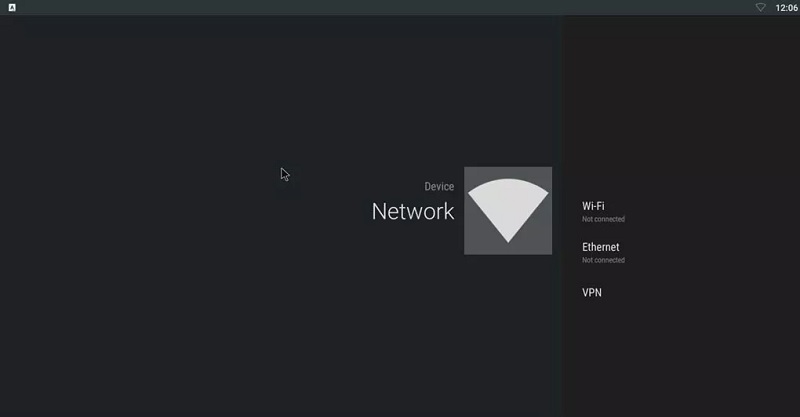
Next, you’ll need to connect your device to the internet. Some Android TV Boxes have built-in Wi-Fi, while others require an Ethernet connection. For the best streaming performance, especially when watching IPTV or playing online games, it’s recommended to use a wired Ethernet connection. However, if this isn’t possible, Wi-Fi can still work fine for most users.
If you prefer a more compact setup, you can opt for flat Ethernet cables, which are easier to manage and take up less space.
3. Power Connection
Lastly, plug in the power adapter for your Android TV Box and connect it to a power outlet. Once powered on, your Android TV Box should boot up and display the home screen on your TV.
4. Select Your Internet Connection
Upon first use, you’ll need to connect the Android TV Box to the internet. Typically, the device will prompt you to select a network (Wi-Fi or Ethernet) when it first starts up. If it doesn’t, simply navigate to the “Settings” menu, select “Network,” and choose your preferred connection.
Update Your Android TV Box
Keeping your Android TV Box updated is essential for ensuring the best performance and security. Updates are usually available through the settings menu of the device, and you can easily check for system updates in the “About” section under “Settings.” On some devices, like the Nvidia Shield, updates are automatically pushed to your device, while others may require manual installation.
In the “All Apps” section, you may also find an app titled System Update or something similar, which can be used to manually check for and apply updates.
How To Install Apps to an Android TV Box
There are two main ways to install apps on your Android TV Box: through the Google Play Store or by sideloading APK files from other sources.
1. Using the Google Play Store

Once connected to the internet, the first thing you’ll want to do is create or sign into a Google Account. This will allow you to access the Google Play Store where you can download a wide variety of apps and games. Apps like Kodi, Netflix, and YouTube are all available for download on the Play Store.
You can install IPTV apps such as IPTV Smarters, GSE Smart IPTV, and Perfect Player to stream live TV directly to your television. Simply search for these apps in the Play Store and click “Install.”
2. Sideloading Apps via APK Files
Android also supports the installation of apps via APK files. APKs are the Android equivalent of EXE files on Windows and can be downloaded from trusted third-party websites. For example, you can download Kodi, a popular media player, directly from the Kodi website or install it from the Play Store.
To install an APK, you’ll need to enable Unknown Sources in the device’s security settings, then use a file manager app to locate and install the APK file.
Conclusion
An Android TV Box is a versatile and cost-effective way to transform your traditional television into a smart TV, offering access to IPTV, media streaming, gaming, and internet browsing. With its easy setup, wide range of apps, and customization options, it’s a fantastic choice for anyone looking to enhance their home entertainment experience.
By following the simple steps outlined above, you can have your Android TV Box up and running in no time, giving you access to the full range of streaming and entertainment options available in the Android ecosystem.